GUIDE / WIX FORMS
Track UTM context with Wix Forms
Understand aggregate Form reporting and campaign context for an individual supported Form action.
Read the Forms guideThe app shows the available traffic source, campaign and keyword beside each supported customer action, in a dashboard inside Wix.
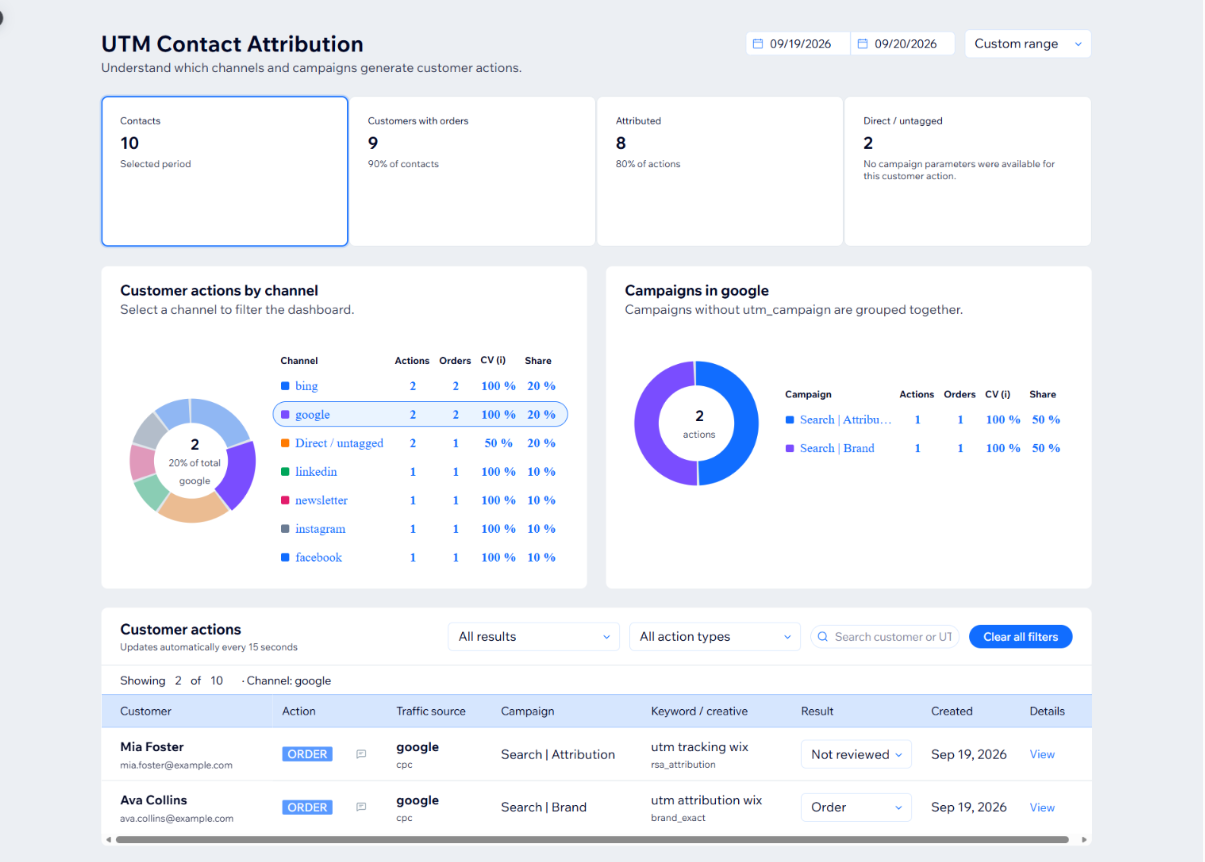
Wix Analytics reports traffic sources in aggregate. UTM Contact Attribution keeps the available campaign context with each individual form, booking, chat or order.
Campaign or source
A tagged linkGoogle Ads, Meta Ads, email, a referral or any other link that carries UTM parameters.
Visit
The visitor opens your Wix siteAvailable UTM parameters and the Google click ID are captured when the visitor’s advertising consent allows it.
Customer Action
The visitor does something you can follow upIn your Wix dashboard
Attribution detailsSource, medium, campaign, term, content and click ID shown beside that action, when available.
Capture depends on tagged links, the visitor’s advertising consent and the same browser being used for the visit and the action. When that context is missing, the action is still listed and its attribution fields stay empty.
UTM Contact Attribution currently supports native Wix Forms, Wix Bookings, legacy Wix Chat, qualifying Wix Smart Chat and Wix Stores Orders.
Supported form submissions recorded by the connected Wix site.
Supported confirmed bookings recorded through Wix.
Supported legacy Chat actions where the required event information is available.
Eligible only after a qualifying Smart Chat contact form is submitted, the Wix Contact relationship is confirmed and sufficient marketing context is available. Chat messages alone are not attributed.
Supported order events received from Wix Stores.
Third-party form, booking, chat and commerce apps are not automatically supported.
The Customer Actions dashboard shows traffic source / medium, campaign, keyword / creative, Result and action date. Use search and filters to find actions, then open attribution details, work with native Wix CRM Notes or use Open Contact to view the Wix contact.
Result is a manual review state: Not reviewed, Order or Not an order. It records your assessment of an action; it does not calculate revenue.
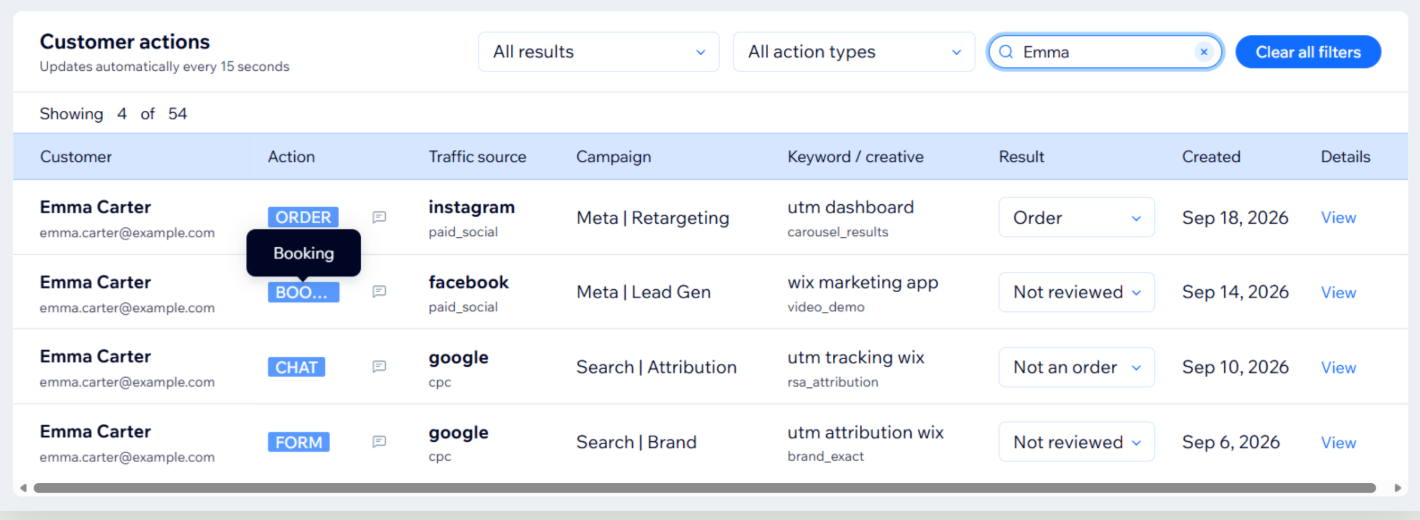
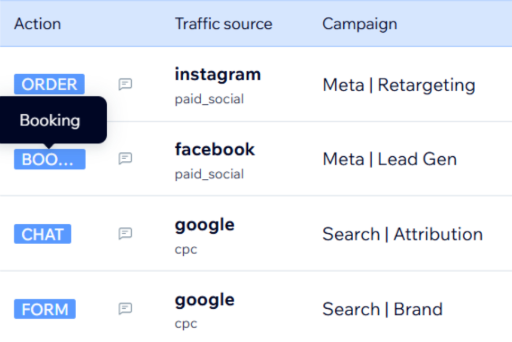
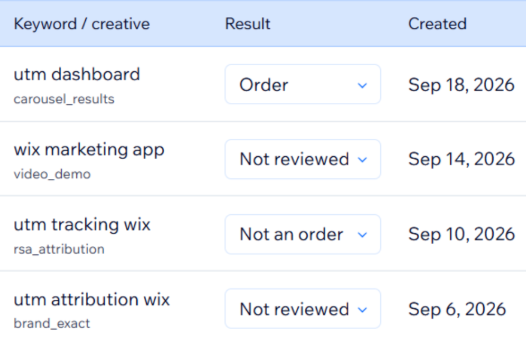
Customer Actions table, captured from version 20.1.0 with synthetic test records. Open the image at full size
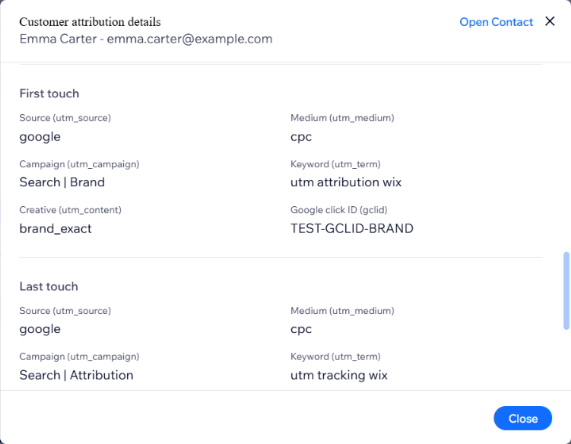
Attribution details opened from the View link, captured from version 20.1.0 with synthetic test records. Open the image at full size
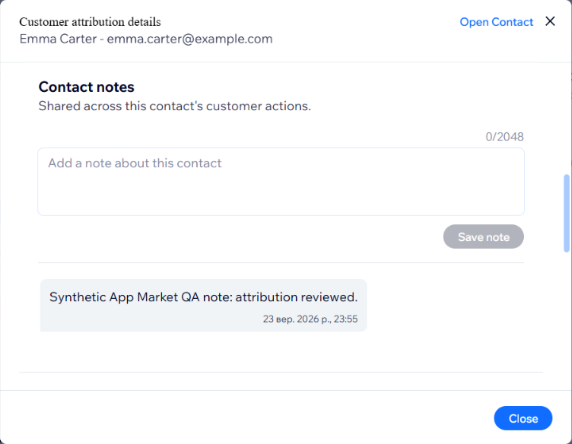
Contact notes in the same window, captured from version 20.1.0 with synthetic test records. Notes are native Wix CRM Notes shared across the contact’s actions. Open the image at full size
All screenshots on this page were captured from version 20.1.0 with synthetic test records. The current release may differ in detail.
Review First Touch, Last Touch and Conversion Touch attribution for each supported action. When available, the following marketing fields are retained with the action.
utm_sourceutm_mediumutm_campaignutm_termutm_contentgclidVisit from a Google Ads link
google / cpc
Later visit from an email link
newsletter / email
Wix Form submitted
Customer Action
The three views can point to the same visit: with a single visit before the action, all three show that visit. Visits count within the 90-day attribution window, and the values shown depend on the eligible snapshots actually retained.
The browser attribution window is 90 days. Advertising attribution is consent gated. Missing parameters, privacy controls, platform behavior, browser restrictions and consent configuration can limit what is available.
Each qualifying customer action keeps its own attribution record, so one Wix contact can have multiple forms, eligible chats, bookings or orders with separate attribution histories.
This can help distinguish where a contact originally came from, what subsequent supported actions occurred, and which available campaign attribution was associated with those actions. Attribution describes a recorded relationship; it does not by itself prove causation. An anonymous Smart Chat message is not a Customer Action.
Two channels can look very different once you know what each lead became. Seeing the source beside every action is what makes that comparison possible.
| Traffic source | Customer Actions (leads) | Marked as Order after review |
|---|---|---|
| Channel A | 40 | 4 |
| Channel B | 15 | 9 |
Open the listing and select the Wix site you want to connect.
Grant only the permissions and advertising consent the real site flow requires.
Use synthetic data, then confirm the action appears with the available UTM and click ID context.
GUIDE / WIX FORMS
Understand aggregate Form reporting and campaign context for an individual supported Form action.
Read the Forms guideHELP / SMART CHAT
Configure the contact form, distinguish CHAT from S-Chat and understand why anonymous messages are not attributed.
Read the Smart Chat guideGUIDE / WIX BOOKINGS
Separate native booking-source totals from context retained for one supported Booking action.
Read the Bookings guideGUIDE / WIX ORDERS
Connect available campaign context to a supported Wix Stores checkout action without claiming revenue attribution.
Read the Order guideGUIDE / GOOGLE ADS
Distinguish conversion tracking, aggregate reporting and individual customer-action attribution.
Read the Google Ads guideCOMPARE / NATIVE ANALYTICS
Choose aggregate reporting when it answers the question, and individual attribution when the action itself needs context.
Compare the workflowsTOOL / CAMPAIGN URL
Create a correctly encoded campaign URL in the browser without an account or server submission.
Open the UTM BuilderFREE / 5-MINUTE CHECKLIST
Get a free 5-minute checklist to spot the gaps between your marketing campaigns, form submissions, bookings, and actual customer outcomes.
The checklist is available now without an email address or marketing subscription.
EMAIL DELIVERY / DOUBLE OPT-IN
Prefer it in your inbox? Enter your business email and confirm the message Brevo sends you. Marketing consent is unchecked until you choose it.
Brevo processes the form submission and confirmation. Read the Privacy Policy. Unsubscribed contacts remain excluded from marketing sends.
UTM Contact Attribution runs inside Wix. Install it through the live Wix App Market listing.
Attribution depends on available tracking parameters and supported platform events. Browser restrictions, privacy settings, missing parameters, platform changes, third-party services, configuration and user behavior can affect the information recorded.